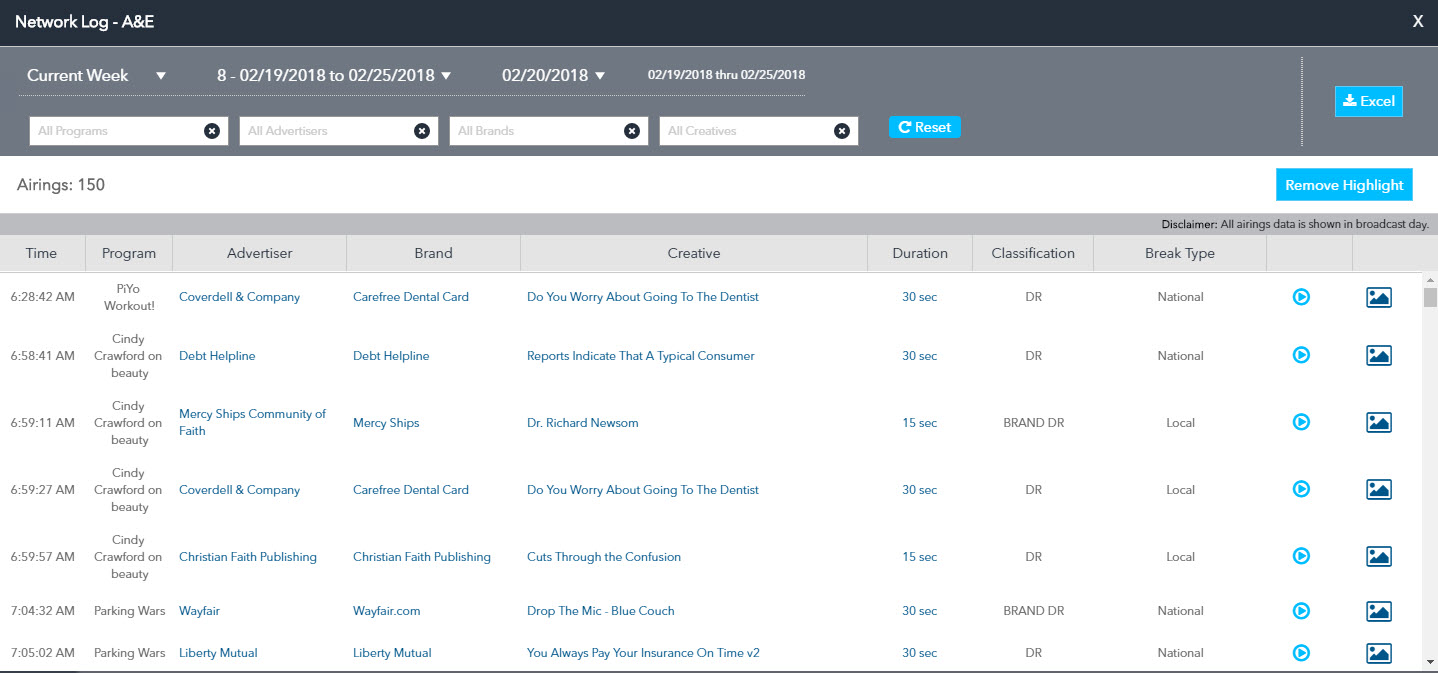
Now AdSphere allows you to view DR airings running on any chosen network for a specific broadcast day. Start by choosing your target network, any historical media week, and then the specific broadcast day you wish to analyze. As you can see below, the system will list all DR airings in chronological order starting at 6AM through 5:59:59AM the next day. We figured our users would want to see the network log view in broadcast day. Please let us know your thoughts!
The network log view will show all short form airings or, if you toggle Brand Classification to Long form,
If you click “Don’t show me this again” it will turn off Excel Popups system wide. You can always re enable them from within the My Reports Tab.
If you’ve ever wanted to customize, or change. the name of any file or saved FILTER inside of AdSphere, now you can!
Before we get started, please log into AdSphere™ and go to the MY REPORTS tab. On the upper right side of the page, please make sure that Excel Popup is Enabled. As shown here–>
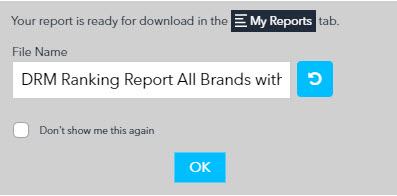
Assuming your Excel Popups are enabled, whenever you click to create an Excel output anywhere in AdSphere a window will popup as shown on the left. You can click into the file name field and customize the name of the Excel file that will be created. If you change your mind, you can click the refresh icon in blue and the system will reset the name of the file back to the system default. Click OK to proceed. When you go to the My Reports tab to retrieve your report, it will be named as you specified. This is great if you wish to name reports on the fly as you create them throughout the system.
Rename Reports & Filters
You can also click on any file name inside of My Reports or My Filters and rename them at any time.
New Way to Share Videos!
DRMetrix has made it easy to share hundreds of videos in seconds with its multi-brand, advertiser, and brand level creative EXCEL export. But what if you just want to share one video? In this build, we’ve added a COPY TO CLIPBOARD icon which you can see in the picture to the right. Just click to play any video and then click this icon at the bottom right of the video player. Once the video link is copied to your computer’s clipboard, you can PASTE it into any document, email, etc. Now you can share any video in seconds!
To paste the video link into a document or email:
MAC – Use the key combination COMMAND+V
PC – Use the key combination CTRL+V
Videos Now work with IOS / iPhones!
Our development team has resolved the issues with iphones so Adsphere video links from Tracking & Alerts, Weekly Spend Index Rankings, and links from our new copy/paste feature can all be played back from IOS devices now. Note: Due to recent changes made by Google videos may playback with audio muted. For now, you can click to enable sound but we are working on a fix which we’ll be rolling out very soon.
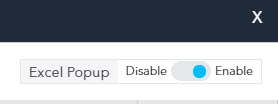 Before we get started, please log into AdSphere™ and go to the MY REPORTS tab. On the upper right side of the page, please make sure that Excel Popup is Enabled. As shown here–>